> For the complete documentation index, see [llms.txt](https://docs.leadbay.app/doc/llms.txt). Markdown versions of documentation pages are available by appending `.md` to page URLs; this page is available as [Markdown](https://docs.leadbay.app/doc/leadbay-mcp/example-prompts.md).

# Example prompts

Leadbay MCP works best when you talk to Claude the way you'd talk to a colleague — describe the outcome, not the tool. Below is a library of prompts that work out of the box, grouped by what you're trying to do. Copy, tweak, and make them yours.

{% hint style="success" %}
**Better in Claude chat.** The rich outputs below — ranked lead tables, interactive trip maps, and ready-to-send draft cards — render natively there. Other MCP clients work too, but fall back to plain text where they don't support these views.
{% endhint %}

***

## Start your day

> *Show me today's leads.*

> *What's in my inbox this morning?*

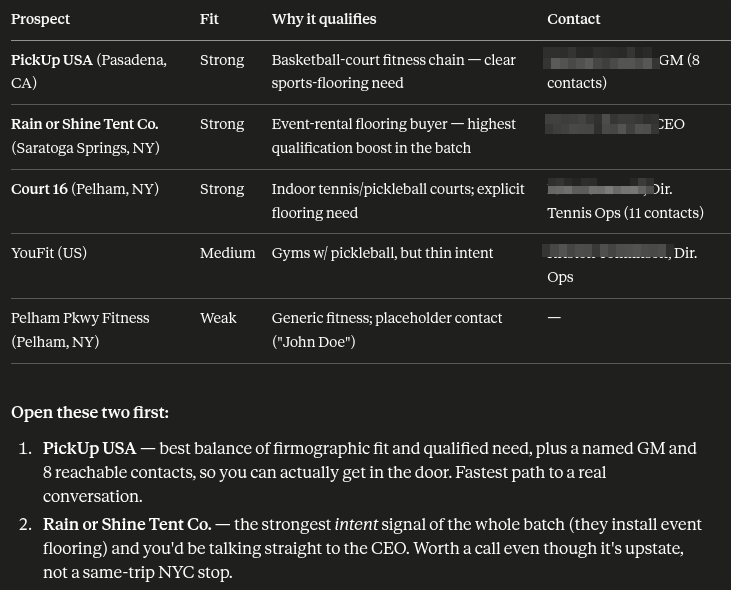
> *Pull my best new prospects and tell me which two are worth opening first.*

> *Give me an overview of my prospecting — where am I, what should I do next?*

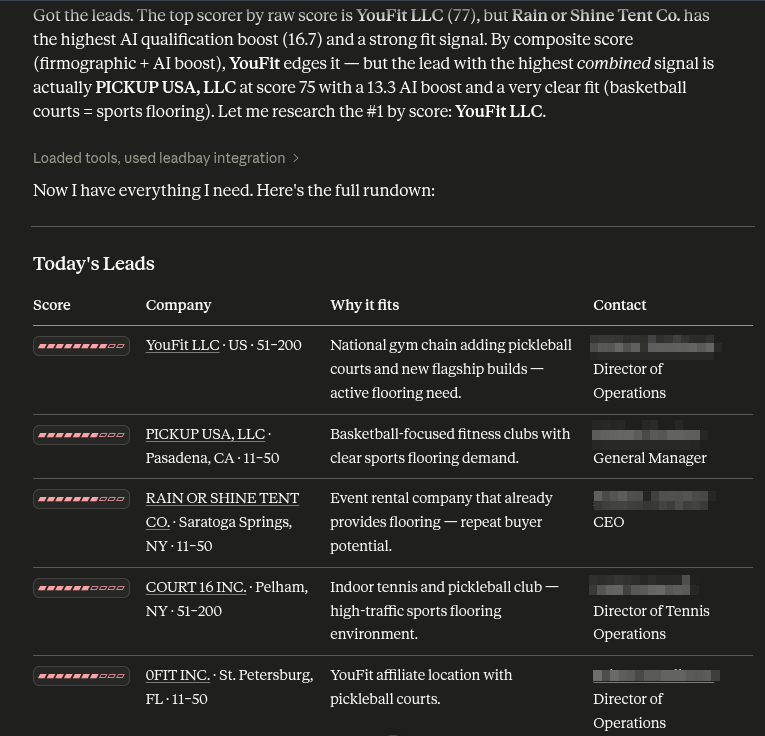
Claude pulls your fresh batch, ranks it, and offers a short shortlist. It won't take any action until you ask:

<figure><img src="/files/XwHtF8iI4LwuqEhzdmem" alt="A ranked table of prospects — fit, why-it-qualifies, and contact — followed by Claude&#x27;s pick of the two worth opening first"><figcaption><p>"Pull my best new prospects and tell me which two are worth opening first." Claude returns a ranked table — fit, why each qualifies, and the best contact — then calls the top two with a reason for each.</p></figcaption></figure>

***

## Follow up & re-engage

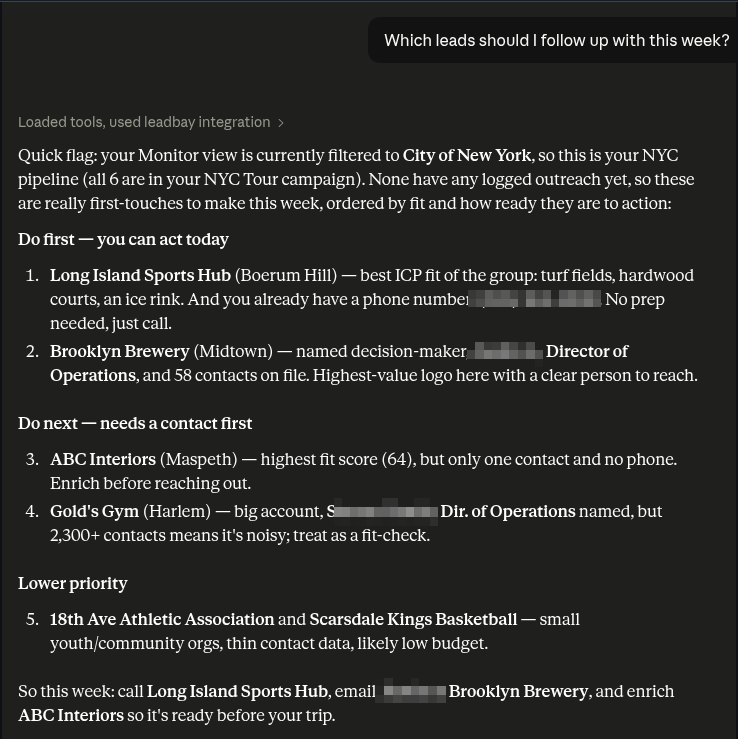
> *Which leads should I follow up with this week?*

<figure><img src="/files/sX8l6lnNEbJ7t46cX7S2" alt="Claude&#x27;s follow-up plan — leads grouped into do-first, do-next, and lower-priority, with the concrete action for each"><figcaption><p>"Which leads should I follow up with this week?" Claude reads your Monitor view and orders it into <strong>do first</strong> (act today), <strong>do next</strong> (enrich a contact first), and <strong>lower priority</strong> — then ends with the exact moves: who to call, who to email, who to enrich.</p></figcaption></figure>

> *Who have I contacted that I should circle back to?*

> *What's the full history on this account — is it worth another visit?*

> *Which of my leads acquired a company since 2025?*

> *Scan my portfolio for funding signals.*

The portfolio-scan prompts filter your existing leads by a web signal in one pass — no need to research each one individually.

***

## Research a company

> *Tell me about jaxpartycompany.com — is it a fit for us?*

> *Research Acme Corp and summarise why they score the way they do.*

> *Pull the contacts and qualification for this lead.*

Claude returns a research card with the company's score, why it fits, and the best contact to reach.

***

## Plan a trip / field sales

> *I'm going to NYC in 2 days — plan a prospecting tour.*

> *I'm visiting Jacksonville in 3 days — plan my visits.*

> *I'm flying to Berlin Thursday — who should I meet while I'm there?*

> *Show my follow-ups around Lyon on a map.*

> *Give me 3 existing customers, 3 qualified leads, and 3 new prospects near Limoges, on one map.*

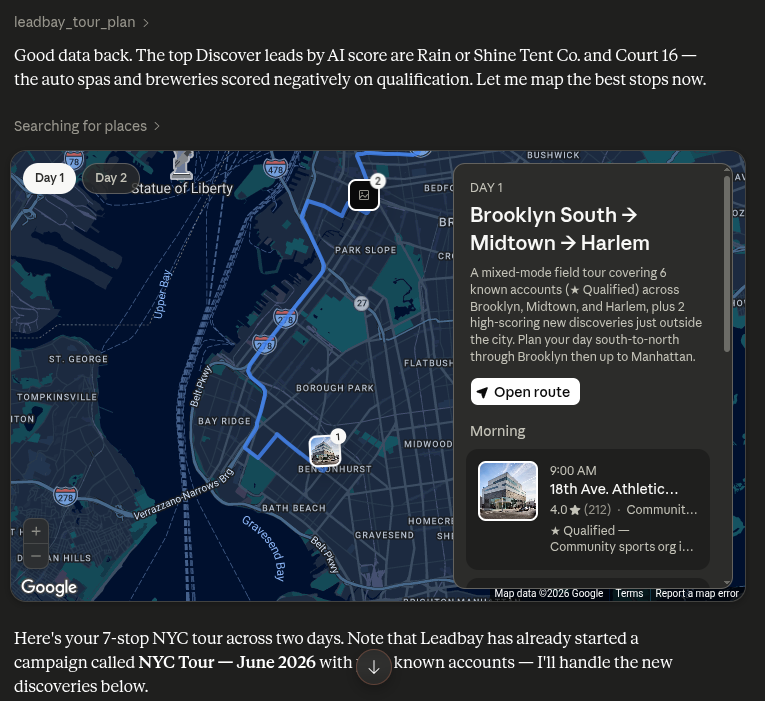
These render on a map where your client supports it, with the best contact and a one-line reason per stop. Here's the NYC tour above, planned and mapped in a single reply:

<figure><img src="/files/Y04eU7qULOXG2x9fuUUG" alt="Claude planning a two-day NYC prospecting tour — an interactive map with a Day 1/Day 2 route and a stop-by-stop itinerary card"><figcaption><p>"I'm going to NYC in 2 days — plan a prospecting tour." Claude picks the best-scoring accounts, lays out a two-day Brooklyn-to-Harlem route on an interactive map, and groups it into a <strong>NYC Tour</strong> campaign — qualified accounts plus high-scoring new discoveries, each with timing and contact.</p></figcaption></figure>

***

## Draft & log outreach

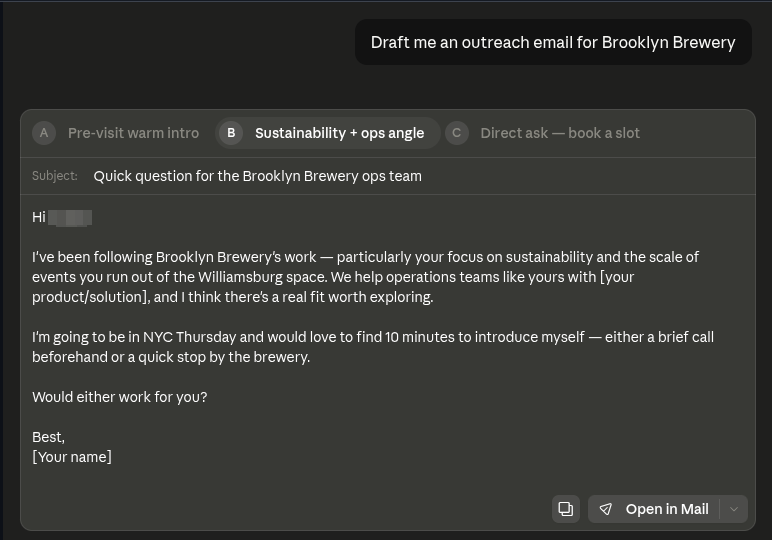
> *Draft me an outreach email for Brooklyn Brewery.*

> *Draft me an outreach email for JAX PARTY COMPANY LLC.*

> *Write a cold-call opener for Acme — I'm selling field-service software.*

> *I just emailed Jane at Acme. Log it as outreach.*

> *I called Acme this morning and left a voicemail — record that.*

Drafting is read-only. Logging writes the activity to your account. A draft comes back as a few ready-to-send variants, each taking a different angle:

<figure><img src="/files/eP3GacTc8RHD0lBqerhH" alt="Claude drafting an outreach email to Brooklyn Brewery with three strategy variants — warm intro, sustainability + ops angle, and direct ask"><figcaption><p>"Draft me an outreach email for Brooklyn Brewery." Claude returns three strategy variants — a warm intro, a sustainability + ops angle, and a direct ask — each personalized with subject and body, ready to open in your mail client.</p></figcaption></figure>

***

## Import & qualify a list

> *I have 400 event attendees — import them and rank the most promising.*

> *Here's a CSV of domains. Import and qualify the top 50.*

> *Qualify the top 10 leads in my batch.*

> *What's the status of my import?*

Claude maps your file's columns, imports the rows, and can immediately run AI qualification on the most promising ones.

***

## Manage your audience (lenses)

> *Show me my lenses and switch to the Joinery one.*

> *Create a lens called Joinery for the fintech sector.*

> *Stop showing me companies with more than 50 employees.*

> *I prefer EU companies that are actively hiring sales reps — refine my audience.*

> *I want more leads on this lens — give me a bigger batch today.*

Lens changes are reversible and reflected immediately in your next pull.

***

## Build a team campaign

> *Set up a prospecting campaign for my team.*

> *Create a campaign for the leads I just qualified and add the top 20.*

> *Show me how the Q3 campaign is progressing.*

> *Give me the call sheet for the Lyon campaign.*

Campaigns persist a hand-picked cohort of leads your team can work through together.

***

## Manage contacts

> *Acme has no contacts — add Jane Doe, VP Eng, here's her LinkedIn.*

> *Pin Jane Doe as the main contact on this company.*

> *Update Jane Doe's title to SVP Engineering.*

> *Remove Jane Doe — I added her by mistake.*

***

## Housekeeping & feedback

> *How much enrichment quota do I have left?*

> *Top up my quota.*

> *Send feedback to the team: lead scores feel off this week.*

***

## Chaining it together

You can ask for a whole sequence in one message, or build it up turn by turn:

> *Pull today's leads, research the top one, and draft me an email to them.*

> *Show me my follow-ups near Madrid, put them on a map, and prep outreach for the closest three.*

Claude carries context across the conversation — once it's surfaced a lead, you can keep referring to "the top one" or "that company" without repeating yourself. Here's that first prompt running end to end:

<figure><img src="/files/wvObWgCbtyYXlMCMx9aA" alt="Today&#x27;s leads as a ranked table with score bars, linked companies, why-it-fits, and linked contacts"><figcaption><p><strong>1. Pull today's leads.</strong> A ranked table with score bars, why each fits, and the best contact — Claude picks YouFit LLC as the top scorer to research next.</p></figcaption></figure>

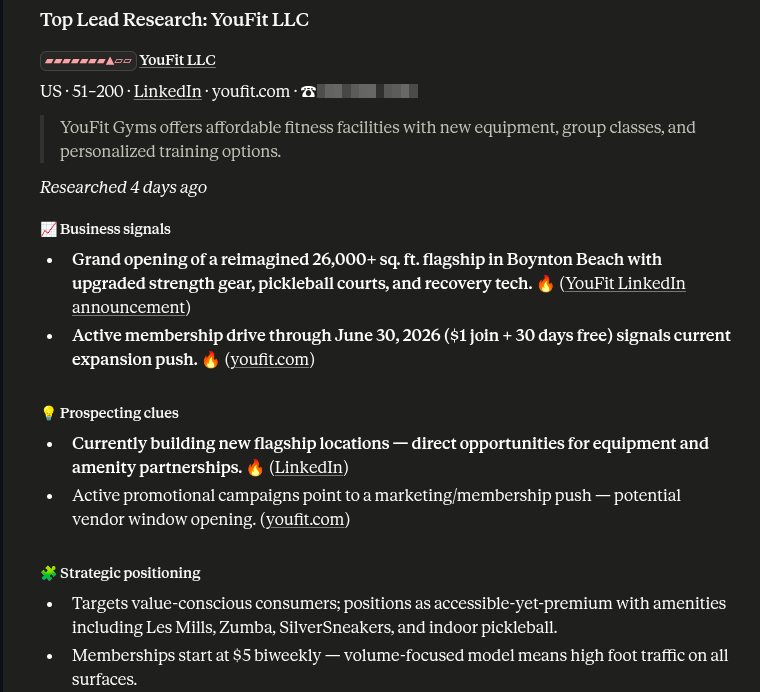
<figure><img src="/files/KQM9pZygAAFH8uWuS6V3" alt="A deep research card on YouFit LLC — business signals, prospecting clues, and strategic positioning"><figcaption><p><strong>2. Research the top one.</strong> A deep-dive card on YouFit: business signals, prospecting clues, and strategic positioning, each sourced.</p></figcaption></figure>

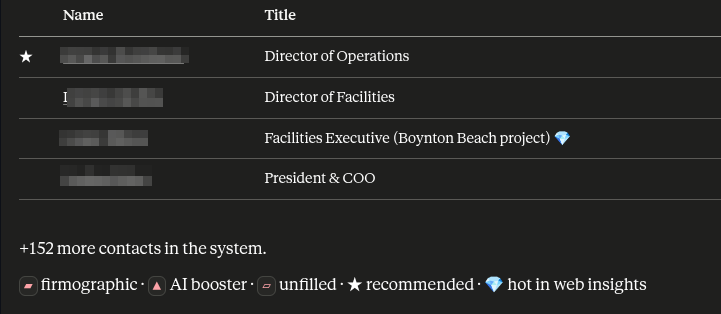
<figure><img src="/files/1Dlbg941j37yzGhLAesu" alt="YouFit&#x27;s contacts — name and title, with one marked recommended and 152 more in the system"><figcaption><p><strong>…with the right person surfaced.</strong> Contacts ranked by relevance — the Director of Operations flagged as the recommended reach.</p></figcaption></figure>

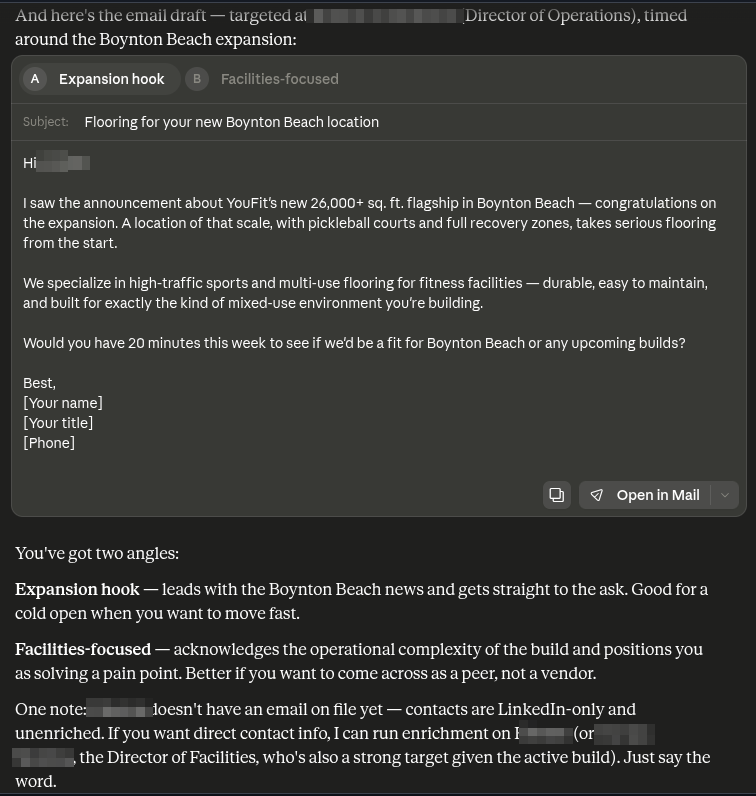
<figure><img src="/files/hlUaHCbJLTnkh5zVAShI" alt="An email draft to the Director of Operations with two strategy variants — expansion hook and facilities-focused"><figcaption><p><strong>3. Draft the email.</strong> A personalized draft to the recommended contact, in two angles (expansion hook / facilities-focused), tied to YouFit's Boynton Beach expansion — ready to open in your mail client.</p></figcaption></figure>

***

## Next step

New here? Start with the overview, then connect.

{% content-ref url="/pages/j2EqO1Nixo2ZDXQ5nKeO" %}
[What is Leadbay MCP?](/doc/leadbay-mcp/what-is-leadbay-mcp.md)
{% endcontent-ref %}

{% content-ref url="/pages/uch4ZQAkJqrspQ28ifMH" %}
[Quickstart](/doc/leadbay-mcp/quickstart.md)
{% endcontent-ref %}


---

# Agent Instructions
This documentation is published with GitBook. GitBook is the documentation platform designed so that both humans and AI agents can read, navigate, and reason over technical content effectively. Learn more at gitbook.com.

## Querying This Documentation
If you need additional information that is not directly available in this page, you can query the documentation dynamically by asking a question.

Perform an HTTP GET request on the current page URL with the `ask` query parameter, and the optional `goal` query parameter:

```
GET https://docs.leadbay.app/doc/leadbay-mcp/example-prompts.md?ask=<question>&goal=<endgoal>
```

`ask` is the immediate question: it should be specific, self-contained, and written in natural language.
`goal` is optional and describes the broader end goal you are ultimately trying to accomplish on behalf of the user. GitBook uses it to tailor the answer towards what is most useful for that goal.

The response will contain a direct answer to the question and relevant excerpts and sources from the documentation.

Use this mechanism when the answer is not explicitly present in the current page, you need clarification or additional context, or you want to retrieve related documentation sections.