> For the complete documentation index, see [llms.txt](https://docs.leadbay.app/doc/llms.txt). Markdown versions of documentation pages are available by appending `.md` to page URLs; this page is available as [Markdown](https://docs.leadbay.app/doc/leadbay-mcp/quickstart.md).
# Quickstart
Connect Leadbay to Claude and get your first qualified leads in about five minutes. This guide uses **Claude** (Claude.ai or Claude Desktop) — the simplest path. Using a different assistant? See [Installation](/doc/leadbay-mcp/installation.md) for step-by-step setup of Claude Code, ChatGPT, and Codex.
{% hint style="info" %}
You'll need a [Leadbay account](https://leadbay.ai/) and Claude (Pro, Max, Team, or Enterprise). That's it — no API tokens to copy or paste; you add one URL and sign in with your browser.
{% endhint %}
***
## First — which one are you?
Adding a custom connector needs a **paid Claude plan**, and in a **company workspace only an admin can add it**. Find your situation, then follow the steps below:
| Your situation | What to do |
| ---------------------------------------------------------- | ----------------------------------------------------------------------------------------------------------------------------------------------------------------------- |
| **Solo / personal paid plan** (not in a company workspace) | Add it yourself — follow Step 1 below. |
| **In a company workspace, and you're the admin** | Add it yourself (Step 1) — your teammates then just **Connect**. |
| **In a company workspace, not the admin** | You can't add it yourself. Send your admin the [Admin setup](/doc/leadbay-mcp/admin-setup.md) guide; once they've added it, skip to **Step 2 — Sign in**. |
| **Can't add connectors / no admin to ask** | On **Claude Desktop**, install the [`.dxt` extension](/doc/leadbay-mcp/installation.md#fallback-install-the-extension) instead — a per-user install with no admin gate. |
***
## Step 1 — Add the Leadbay connector
[**Add the Leadbay connector →**](https://claude.ai/customize/connectors?modal=add-custom-connector\&connectorName=Leadbay\&connectorUrl=https%3A%2F%2Fmcp.leadbay.app%2Fmcp), then click **Add**. There are two server URLs — this link uses the US one, `https://mcp.leadbay.app/mcp`. If you're in France, use `https://mcp.leadbay.app/fr/mcp` instead.
{% hint style="info" %}
Prefer step-by-step screenshots, or on a different assistant (Claude Desktop, Claude Code, ChatGPT, Codex)? See the full [Installation](/doc/leadbay-mcp/installation.md) walkthrough.
{% endhint %}
***
## Step 2 — Sign in
1. Open the new **Leadbay** connector and click **Connect**.
2. A **Sign in with Leadbay** page opens in your browser — log in (or confirm your existing session) and click **Approve**.
3. The tab closes itself and Claude is connected.
That's the whole connection — no tokens, no config files. Claude is now linked to **your** Leadbay account, with all the leads you already have. You can revoke access anytime from **Settings → Connected apps**.
***
## New here? Take the guided tour
Not sure what to ask for first? Type:
> *Walk me through Leadbay.*
Claude runs a short walkthrough on your own account — four steps, one button each, and you click to move forward:
| Step | What it does |
| ------------------------- | ------------------------------------------------------------------------------------ |
| **Check my account** | Which account you're on, and how much of your AI quota is left this week. |
| **Pull today's leads** | Today's batch from your lens — ranked, with a one-line reason each fits. |
| **Draft the first email** | Writes a first email to the top company. Nothing is sent. |
| **Find who to email** | Shows which roles exist there, then reveals the actual person — only if you confirm. |
Every step is a real action on your real account, not a demo. You can stop at any point with **I'm done for now**, or just type what you actually wanted — the walkthrough steps aside and Claude follows you there.
{% hint style="info" %}
**Nothing is spent without your say-so.** The first three steps are free, and so is the preview of *which* roles you could contact. Revealing a real email or phone number costs one credit per contact, and the walkthrough tells you the cost before you decide.
{% endhint %}
Prefer to jump straight in? Skip the tour and go to Step 3.
***
## Step 3 — Ask for your first leads
Open a new conversation and type:
> *Show me today's leads and tell me which two are worth opening first.*
Claude calls your Leadbay tools and replies with a short, ranked shortlist — company, why it fits, and the best contact to reach.
{% hint style="info" %}
First message gets *"I don't see any Leadbay tools"*? The tools are still loading. Send any second message (even just *"try again"*) and Claude will pick them up.
{% endhint %}
***
## Step 4 — What you should see
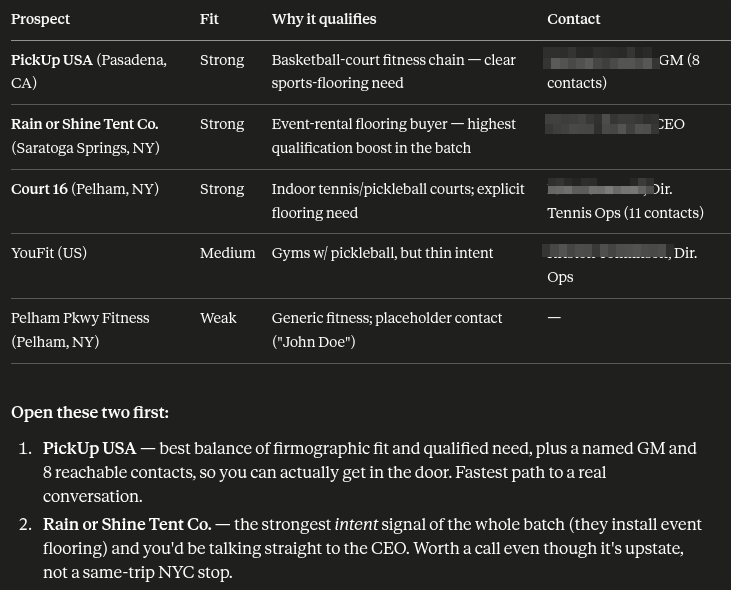
A successful first response looks like a **ranked table of leads**, not a wall of text. For each lead you'll get:
* a **score** (how well it matches your audience),
* a one-line **why it fits**,
* the **best contact** with a link where available.
If Claude replies with leads like that, you're fully connected. 🎉
A successful first reply: a ranked table of prospects, then the two worth opening first.
***
## Step 5 — Keep going
Once you've seen your first leads, try these:
> *Research the top one for me — is it a fit?*
> *Draft me an outreach email to them.*
> *I just emailed them. Log it as outreach.*
Claude remembers the leads it surfaced, so you can keep referring to "the top one" without repeating yourself.
***
## Using another assistant?
{% content-ref url="/pages/gVHUYrjZtE3ZkIfxLRuz" %}
[Installation](/doc/leadbay-mcp/installation.md)
{% endcontent-ref %}
Step-by-step setup for **Claude.ai**, **Claude Desktop**, **Claude Code**, **ChatGPT**, and **Codex**. US accounts use `https://mcp.leadbay.app/mcp`; France / EU use `https://mcp.leadbay.app/fr/mcp`.
***
## Where to next
{% content-ref url="/pages/alp1pPMtNOaF49Nro0F4" %}
[Example prompts](/doc/leadbay-mcp/example-prompts.md)
{% endcontent-ref %}
{% content-ref url="/pages/KYxczcA4BfuwR6LTxaMQ" %}
[Tools reference](/doc/leadbay-mcp/tools-reference.md)
{% endcontent-ref %}
---
# Agent Instructions
This documentation is published with GitBook. GitBook is the documentation platform designed so that both humans and AI agents can read, navigate, and reason over technical content effectively. Learn more at gitbook.com.
## Querying This Documentation
If you need additional information that is not directly available in this page, you can query the documentation by asking a question.
Perform an HTTP GET request on the following URL with the `ask` and `goal` query parameters:
```
GET https://docs.leadbay.app/doc/leadbay-mcp/quickstart.md?ask=&goal=
```
`ask` is the immediate question: it should be specific, self-contained, and written in natural language.
`goal` is what the user is ultimately trying to achieve, the reason they need the answer. Sharing it helps GitBook give you a better, more relevant answer. A goal is most helpful when it describes the outcome the user wants rather than restating the question. For example, with `ask=how do I create an API token`, a goal like `automate deployments from our CI pipeline` lets GitBook tailor the answer to that use case.
The response will contain a direct answer to the question and relevant excerpts and sources from the documentation.
Use this mechanism when the answer is not explicitly present in the current page, you need clarification or additional context, or you want to retrieve related documentation sections.